-Kley-
Northern Pike

Joined: 29 Sep 2007
Posts: 254
Location: Valparaiso, IN
|
 Posted: Thu Apr 17, 2008 9:58 am Post subject: Posting Pictures and Videos: Posted: Thu Apr 17, 2008 9:58 am Post subject: Posting Pictures and Videos: |
 |
|
For those of your who are new to website forums, or just never got around to figuring out how to post your pictures, this is your how-to thread...
Pictures make everything much more interesting. So you caught a dozen walleye this weekend, let's the see the pictures!! TeamUnstable cannot host your pictures on our bulletin board. There are add-ons that allow it, and they supposedly work pretty good, but hosting all of these pictures and uploading them every time someone views a thread would kill our subscription. GoDaddy (our host) would end up charging us an arm and a leg every month. There's a handful of websites out there who will host your pictures and videos for free. They make their money off of advertisements on their website and in return, you get a free place to put your pix and share them quickly and easily on the internet. For this 'How-to', I'm going to use the most popular site - Photobucket.
1) First off, go to www.photobucket.com and click on "Join Now" at the top of the page. Create a username and password. No special characters are allowed - only letters and numbers (and the hyphen and underscore). It will then ask for your personal info. You do not have to fill in your phone number, or even give your real name if you're not comfortable. You do need to provide a valid email address in case you forget your password.
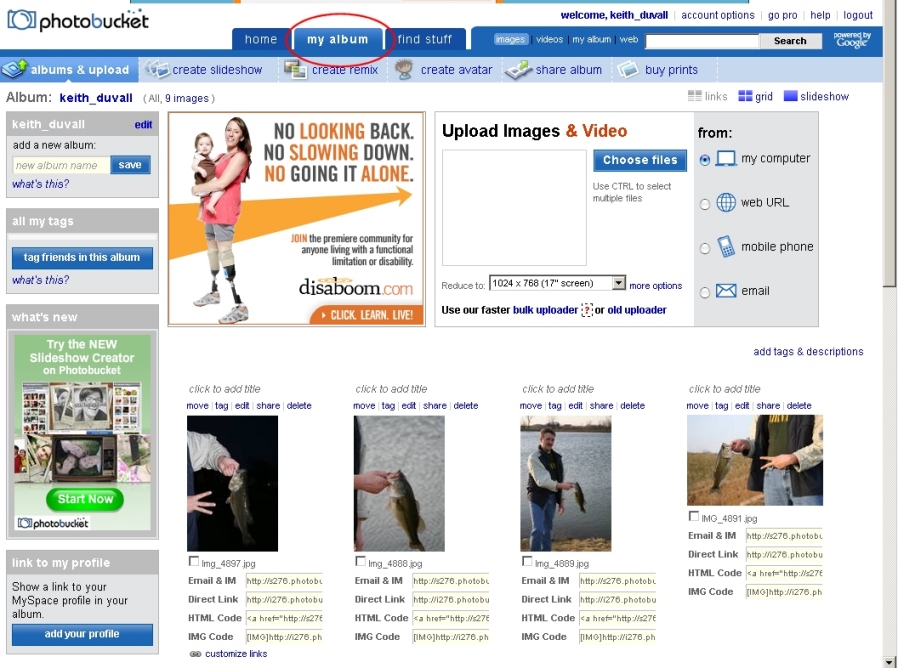
2) After you sign up, it will take you to the "My Album" page. This is the main page of your account. This is where you will see the pictures and videos that you upload from your computer to the website. Since you just signed up, you'll see nothing here. To begin uploading your pictures and videos, click on the "Choose Files" button.
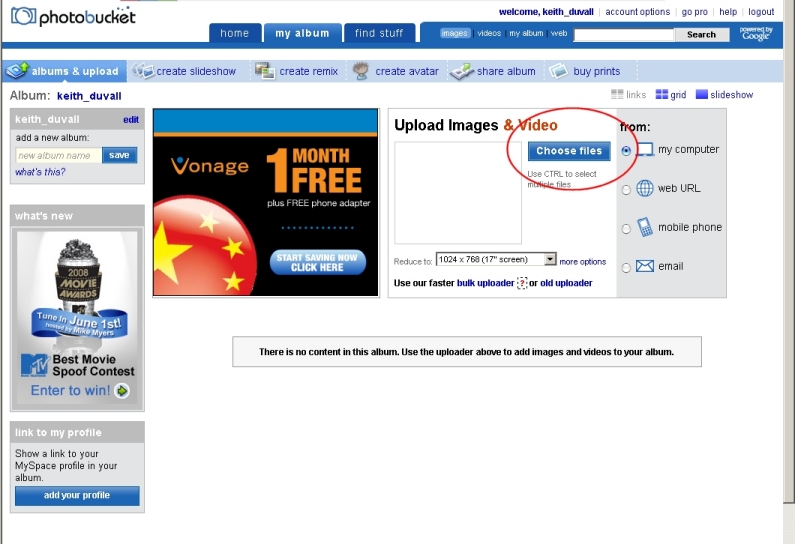
Note**** You'll also see "Reduce to:" drop down list below the Choose files button. When you take pictures with your 5.0 megapixel, or larger with some of the newer cameras, the pictures are HUGE! This is good if you want to crop in on something specific in the picture when you print it. You'll have plenty of pixels and it won't get choppy looking. However, this is bad when you post pictures on the web. Computer monitors have far fewer pixels than today's printers, so when you post a 5.0 magapixel camera picture, it will look absolutely HUGE on a website. That's why photobucket automatically resizes the pictures that you upload while you're doing it. The default setting is 1024x768, which isn't bad, but it's a little too big for forum pix. I'd recommend using 800x600. Otherwise your pictures will end up looking really big on the screen.
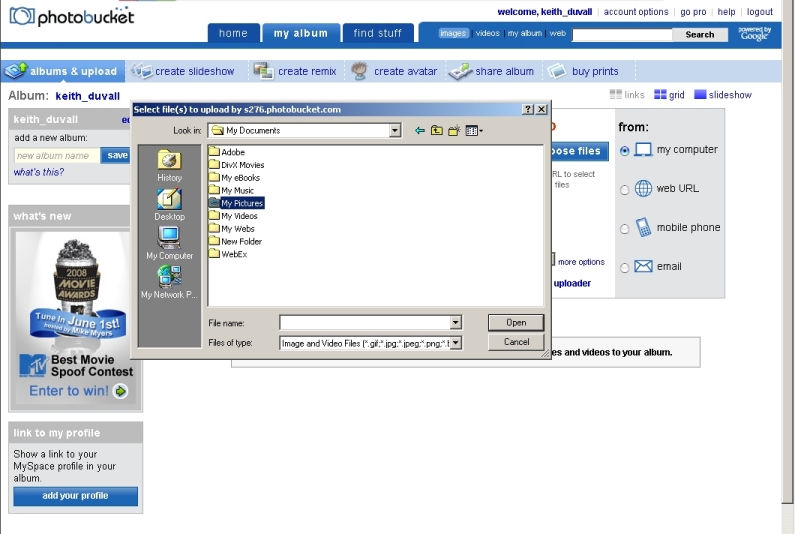
3) This is the tricky part. After you click "Choose Files", a dialogue box comes up that asks you to choose the pictures that you want to upload to the Photobucket website. I can't tell you where your pictures are, so you need to familiarize your self with where you've been saving them, or where your digital camera program has been saving them. Kodak camera's for example, will save the pictures under "My Documents" then under a Kodak folder. Most camera's will put them under My Documents or My Pictures. You may need to play around in this box and just look around to find your picutures. If anyone has serious difficulty finding their pix, please post in this thread and I can try to help you figure out where they are.
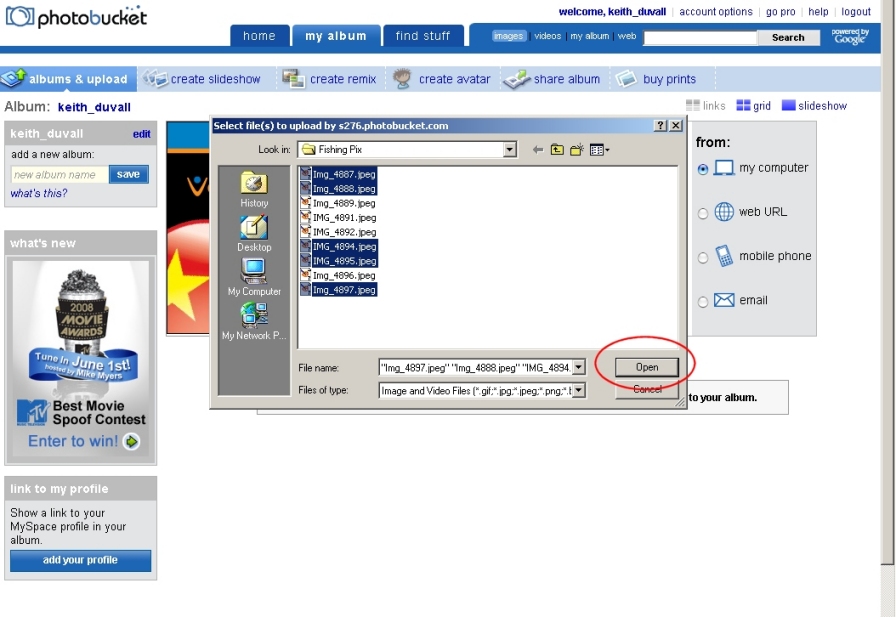
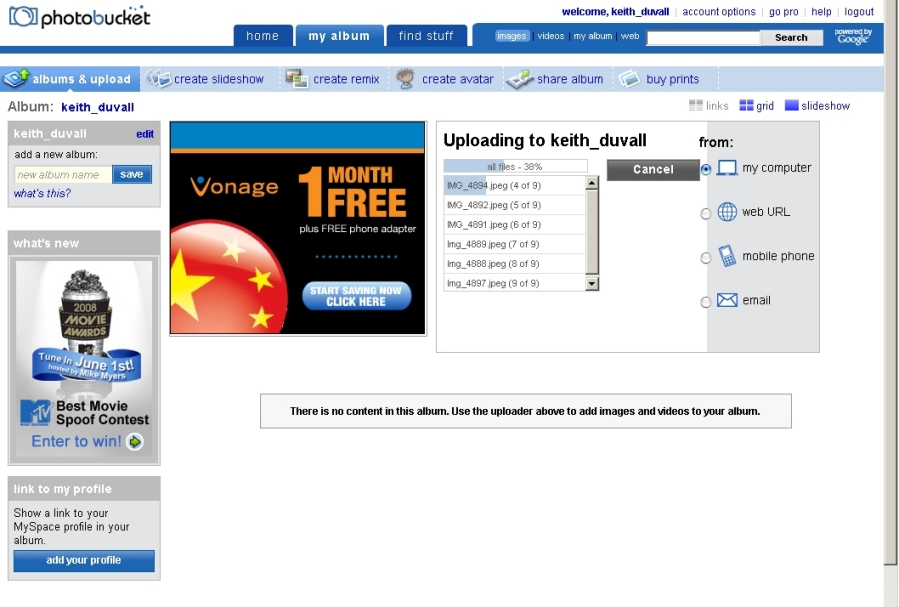
4) After you find where your pictures are stored on your computer, select the pictures that you want to upload. You can do this one at a time, or you can do multiple pictures by holding down the "Ctrl" button on your keyboard while clicking (see image below). Once you've selected them all, click on the 'Open' button to begin uploading them. The page will change and you'll see the progress of your uploads.
5) Once you've finished uploading your pictures, you'll need to click on the "My Album" button at the top of the screen to show the pictures that you just uploaded. Now, you'll see a screen with your pictures below. Find the picture that you want to post in the message board. You will see four boxes below it: Email and IM, Direct Link, HTML Code, and IMG Code.
Email and IM - With this option, you can copy and paste a link to the picture into an email. You can use this option or the Direct Link option if you want to post a link to the picture on the Message Board. These two options will not actually display the picture in the thread, it will only show a link that people will have to click on to see your picture.
Direct Link - This option seems to do the same thing as the Email and IM option.
HTML Code - This option gives you the code to post into a website if you're designing a website or modifying a website by hand. This is also the code that you will use if you're posting pictures on Ebay and don't want to pay Ebay to host them. Put them on your photobucket account and post the HTML Code into the body of your Ebay listing. It'll save you money.
IMG Code - This is what you want to use to post the picture itself into your message on the message board. When you copy and paste this into your message body, the picture will display automatically.
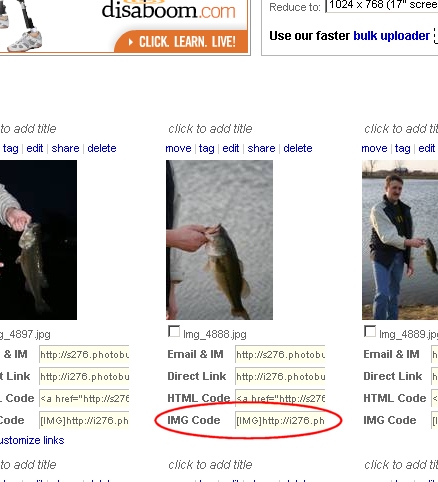
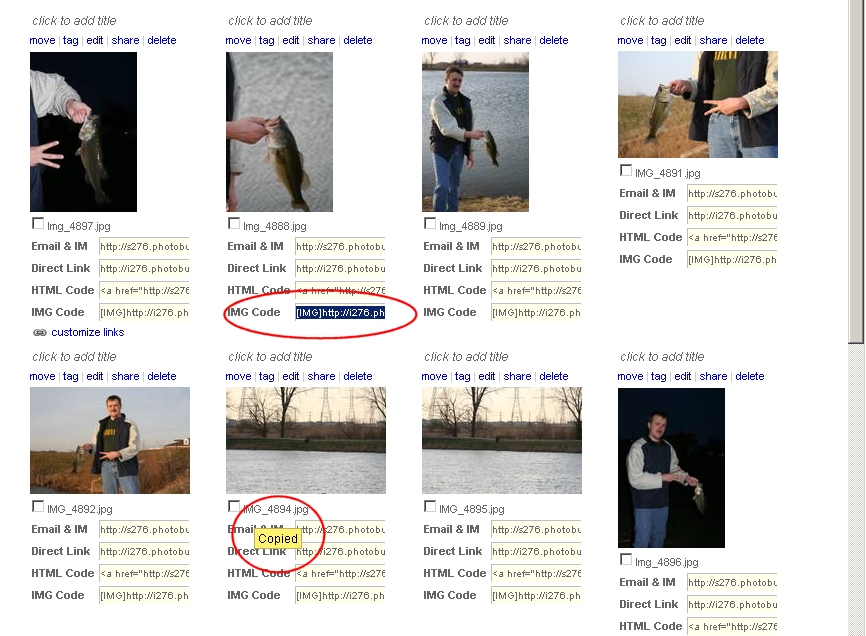
6) If you simply click into the IMG Code box, it will display a brief "Copied" text over it. This is telling you that it has copied the contents of the IMG Code box to your computers clipboard. Now all that you need to do is "Paste" it into your message.
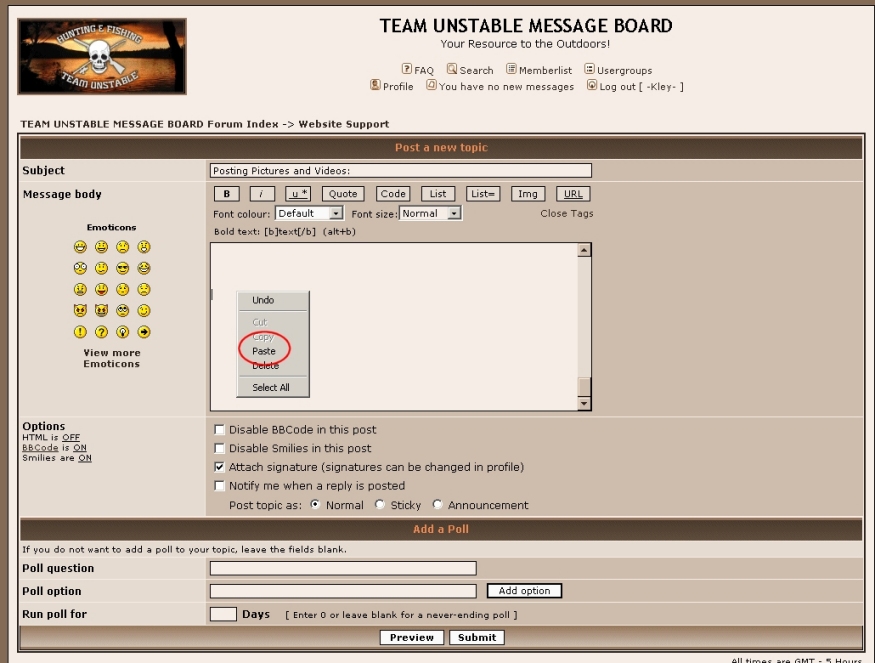
7) Log into the TeamUnstable.com message board and either create a new message or reply to a post. In the message body, right-click with your mouse and then left-click on the "Paste" option from the box that appears. This will paste the code needed to display your picture from your Photobucket account. Now hit 'Submit' at the bottom to post your message and BAM, you've just posted your fist picture. Congratz!!
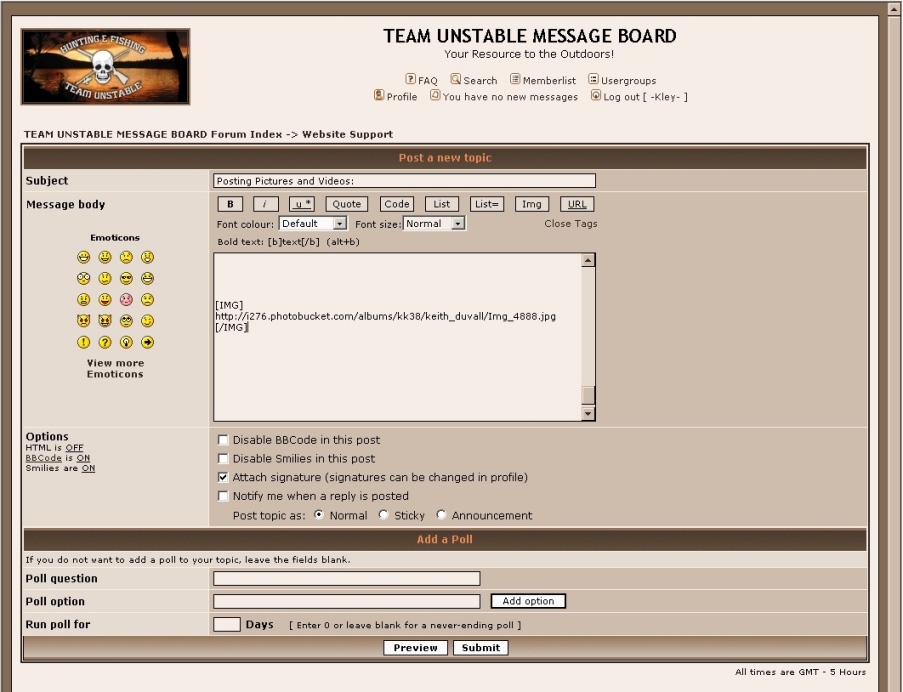
NOTE **** If you want to test this out, please feel free to reply to this message and test here. I'll delete your post after a day or two. You can also use the "Preview" button to see what your message will look like before you post it. I usually hit 'Enter' a couple of times before I paste the picture code. This puts a small gap between the text of what I typed and the picture.
Again, feel free to post here if you have any problems using Photobucket and we'll do our best to assist you. You can follow pretty much the same steps for posting videos. Vidoes do not use the IMG tags, so you'll just be posting a Link.
_________________
-Kley-
Keith D - Website Admin |
|

 FAQ
FAQ Search
 Memberlist
 Usergroups
 Register
 Profile
 Log in to check your private messages
 Log in


